How do I create and send a silent screencast to the patron?
In LibraryH3lp, you can capture and send the patron a silent recording of your own screen using the Sharing Tool, the same tool that you use to send a screenshot.
Screencasting can be a helpful instructional tool for demonstrating how to navigate webpages, databases, or how to use software. It is helpful when a visual demonstration of your screen is quicker than typing out an explanation.
Policies and best practices
If you create and share a screencast, follow these policies and best practices:
- Do not share any personal or private information via the screencast.
- Do not share any login information, including the AskAway guest logins, via the screencast.
- Communicate with the patron:
- Before recording, you may wish to ask them first if it would be helpful for them to see a short screencast. Let them know that you will be taking a minute or two to record and then send a silent recording of your screen and that you will share it with them as a webm video file that they can download or view in their browser when it’s ready.
- Use the Chat - Screencast script: "Would it be helpful to see a short, silent recording of my screen? If so, please wait a few minutes. When the screencast is ready, I'll send you a webm video file that you can download or view in your browser."
- Keep screencasts short and to the point.
- Use your cursor to demonstrate and highlight your actions where possible.
- Be mindful of other patrons that you’re helping and continue to communicate actively with them via chat.
Tips
- The screencast tool does not include narration or captioning. It is a silent recording of your screen.
- Webm file format is not universally supported on all devices and browsers. See the Vendor Support section in this Webm Wikipedia article for information about which browsers and applications support this file format.
- If this is an issue, use slideshows or screenshots.
- Longer recordings will have larger file sizes. Keep this in mind when recording your screencast and sending it to the patron.
- The recording process will vary depending on the browser you use and your settings.
- For example, in Chrome, the browser tab that is being recorded might show a flashing icon to indicate the recording is on. If you move to a different tab, you'll be prompted to “Share this tab instead” and can record in a new tab. The experience will be different in Firefox.
How To
To record and send a silent screencast, follow these steps:
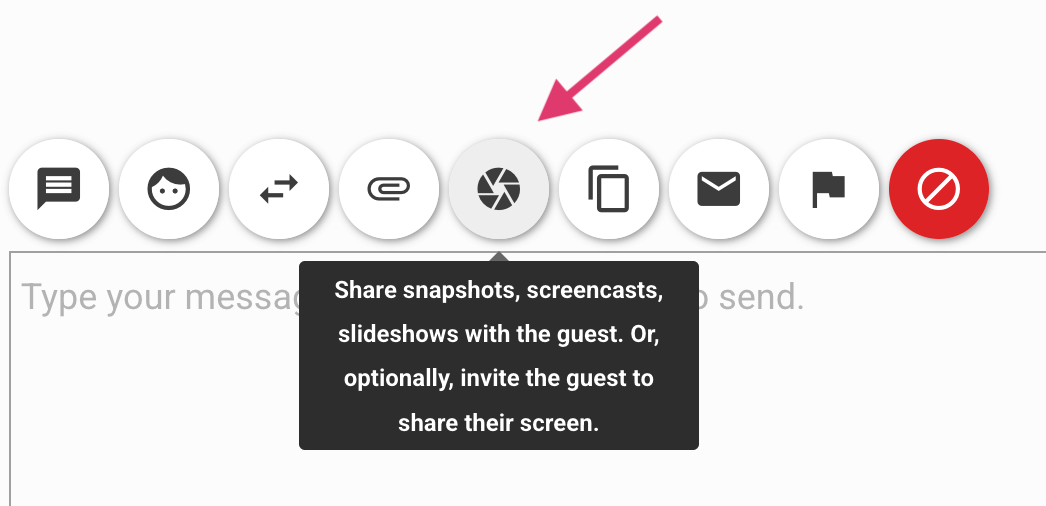
1. Open the Sharing Tool in the chat to “Share snapshots, screencasts, slideshows with the guest.”
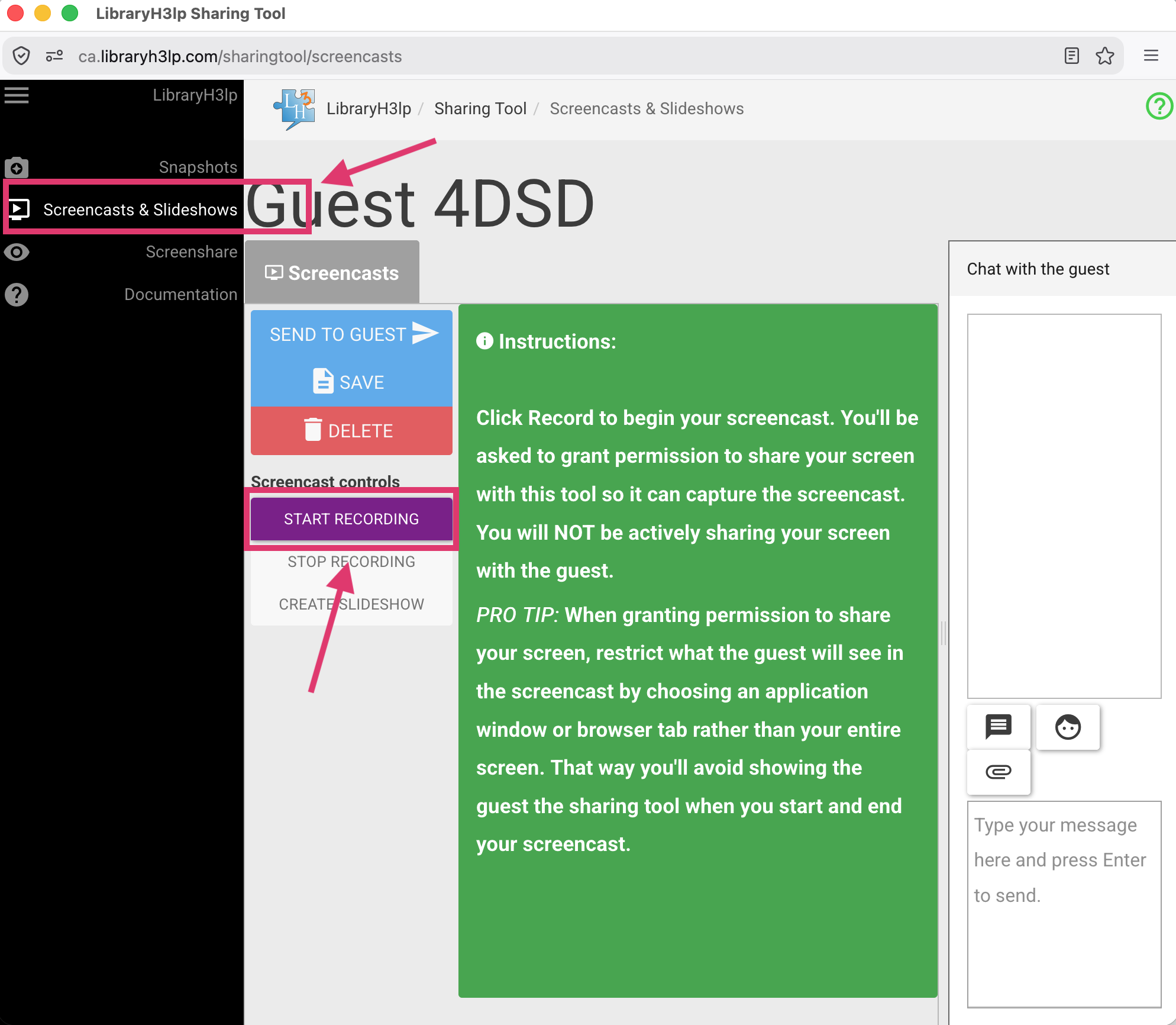
2. Click “Screencasts & Slideshows” in the left-hand menu and then “Start Recording” to begin your screencast.
3. Select the browser window that you want to share.
- You may need to adjust your browser and computer settings to allow LibraryH3lp to see and record your screen.
- To restrict what the patron sees, choose only an application window or a browser tab rather than your entire screen.
- Do not share any personal information with the patron via your screen.
- The recording starts as soon as you select the screen/window to share with the screencasting tool.
- The behavior of the screencasting tool varies depending on your browser and settings.
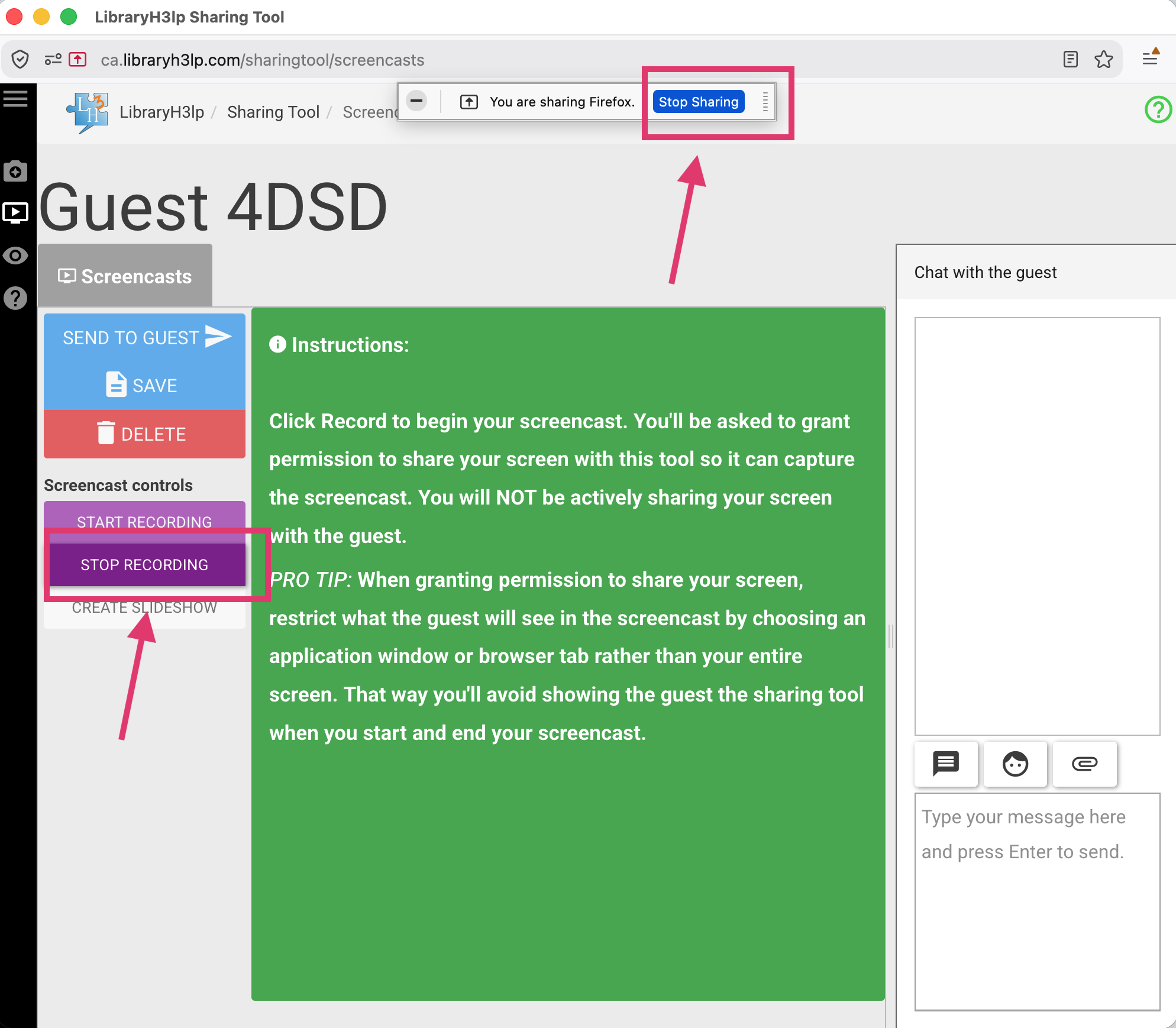
4. When you are done recording, click “Stop Sharing” in your browser or return to the Sharing Tool and click “Stop Recording.”
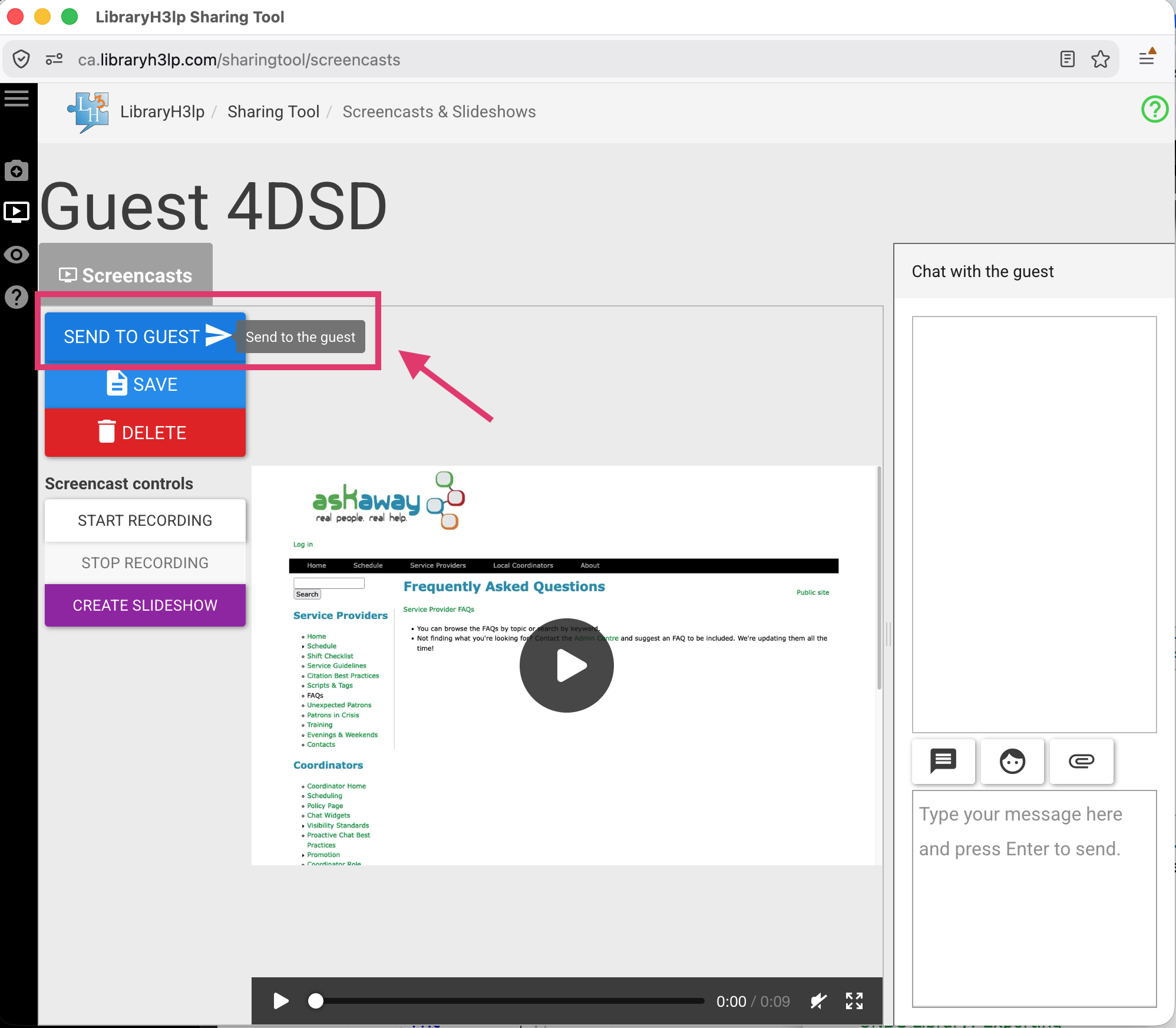
5. You can preview your recording before sending it to the patron. If you want to delete and re-record, click “Delete.”
6. When you’re ready, click “Send to Guest” to send the recording to the patron, close the Sharing Tool, and return to your chat(s) in the main LibraryH3lp webclient.
7. The patron will receive a URL in the chat. They can click on this to download the screencast as a webm video file, which will play on most devices.
If you want to create a slideshow, click the “Create Slideshow” button and see the steps in the slideshow FAQ to proceed.
